Users

Users

WAI Docs Wed Aug 19 13:22:37 EDT 2026
List
Quick Start
Welcome
Supported Applications & LLMs
Release Notes
August 18, 2026 WitnessAI Release
August 4, 2026 WitnessAI Release
July 21, 2026 WitnessAI Release
July 14, 2026 WitnessAI Release
July 9, 2026 WitnessAI Release
June 30, 2026 WitnessAI Hotfix
June 23, 2026 WitnessAI Release
June 16, 2026 WitnessAI Release
June 11, 2026 WitnessAI Release
June 4, 2026 WitnessAI Hotfix
June 2, 2026 WitnessAI Update
May 19, 2026 WitnessAI Update
April 30, 2026 WitnessAI Update
April 28, 2026 WitnessAI Update
April 23, 2026 WitnessAI Update
April 16, 2026 WitnessAI Update
April 14, 2026 WitnessAI Update
April 9, 2026 WitnessAI Update
April 7, 2026 WitnessAI Update
April 2, 2026 WitnessAI Update
March 31, 2026 WitnessAI Update
March 24, 2026 WitnessAI Update
March 19, 2026 WitnessAI Update
March 17, 2026 WitnessAI Update
March 12, 2026 WitnessAI Update
March 5, 2026 WitnessAI Update
February 26, 2026 WitnessAI Update
February 24, 2026 WitnessAI Update
February 10, 2026 WitnessAI Update
January 27, 2026 WitnessAI Update
January 20, 2026 WitnessAI Update
January 13, 2026 WitnessAI Update
December 18, 2025 WitnessAI Update
December 9, 2025 WitnessAI Update
November 25, 2025 WitnessAI Update
November 18, 2025 WitnessAI Update
November 11, 2025 WitnessAI Update
October 28, 2025 WitnessAI Update
October 23, 2025 WitnessAI Update
October 9, 2025 WitnessAI Update
October 2, 2025 WitnessAI Update
September 30, 2025: WitnessAI Update
September 23, 2025: WitnessAI Update
August 12, 2025: WitnessAI Update
July 31, 2025: WitnessAI Update
July 18, 2025: WitnessAI Update
April 11, 2025: WitnessAI Release v2.0
June 9, 2025: WitnessAI Update
June 23, 2025: WitnessAI Update
TOC Left Sidebar: not active
TOC Left Sidebar: ORIGINAL
User Guide
Policies - GuardRails
Witness Anywhere: Remote Device Security
Witness Attack
Administrator Guide
404
 

Conversations by Users

The Users page provides visibility into individual user activity within AI models and applications. It provides insight into which users are interacting with specific models, as well as their intentions, usage patterns, and risk profiles.
The importance of this feature lies in its ability to investigate user-specific behaviors and ensure compliance with company policies and security requirements.
WitnessAI Users page showing the Conversations by Users view. The left panel shows the Conversations list grouped by users with prompts, intentions, and risk scores. The right panel shows a Risk Analysis slide-out with ‘Triggered Policy’ and ‘Conversation’ details including a ‘Prompt’ section showing a redacted SSN query.

Step-by-Step Instructions

Filtering Users Conversations

  1. Access the Users page from the sidebar menu.
  2. You will see a list of all recent conversations, grouped by users.
  3. Use the Date Range drop-down to choose the date range, and the Group drop-down to filter Users by Groups.

Sorting the Table

The header of each column can sort the table, just click the header and the table will sort. Click the header again and the table will sort in the reverse order.

WitnessAI Users page table header row showing columns: User, Conversations, Risk, Latest Intention, and Date & Time with sortable column headers for filtering user activity data.
  1. Click the Date column, and the conversations will sort from the earliest dates (least recent) at the top, to the latest dates (most recent) at the bottom.
  2. Try the filter icon for each column (the inverted pyramid of lines). Each column’s filter has relevant filter options for the data in that column.
  3. Now click the drop-down arrow to see the filter options.
  4. Try this for the other columns to get familiar with the rest of the column filters.
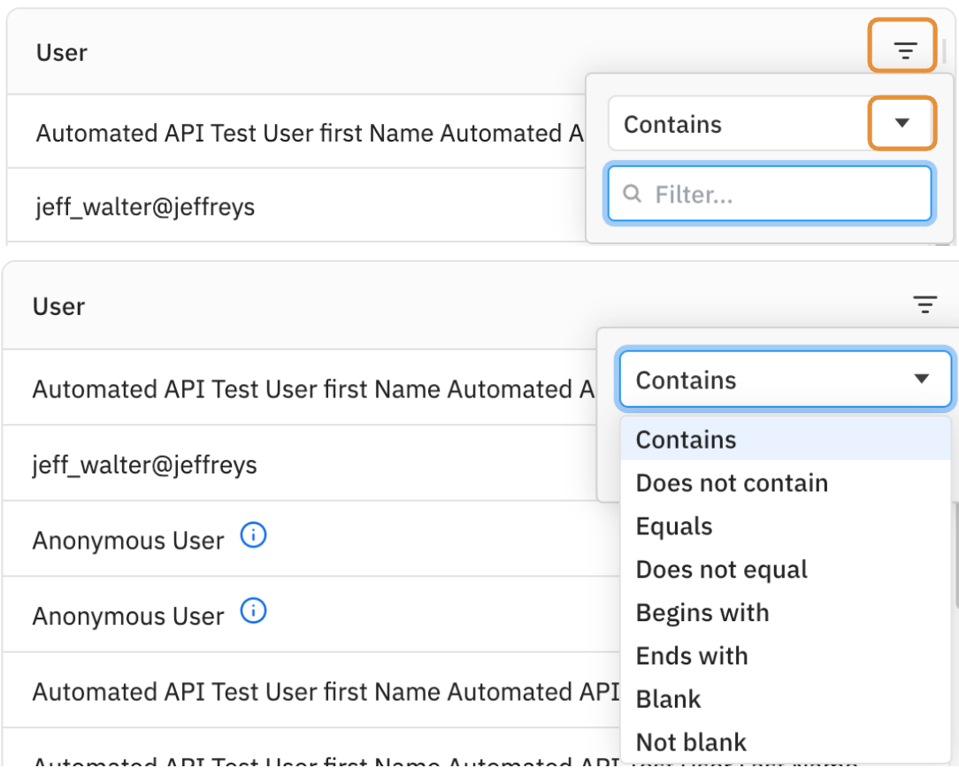
WitnessAI Users page showing the column filter options for the User column. The filter dropdown shows options: Contains (selected), Does not contain, Equals, Does not equal, Begins with, Ends with, Blank, Not blank. A search field is shown with Filter… placeholder.

Investigating User Conversations

Now let’s try an investigation workflow.
  1. First sort or filter by the Risk column, so the High Risks are all together
  2. Now I see a Conversation with 18 prompts and responses, with a High Risk. Let’s click on that!
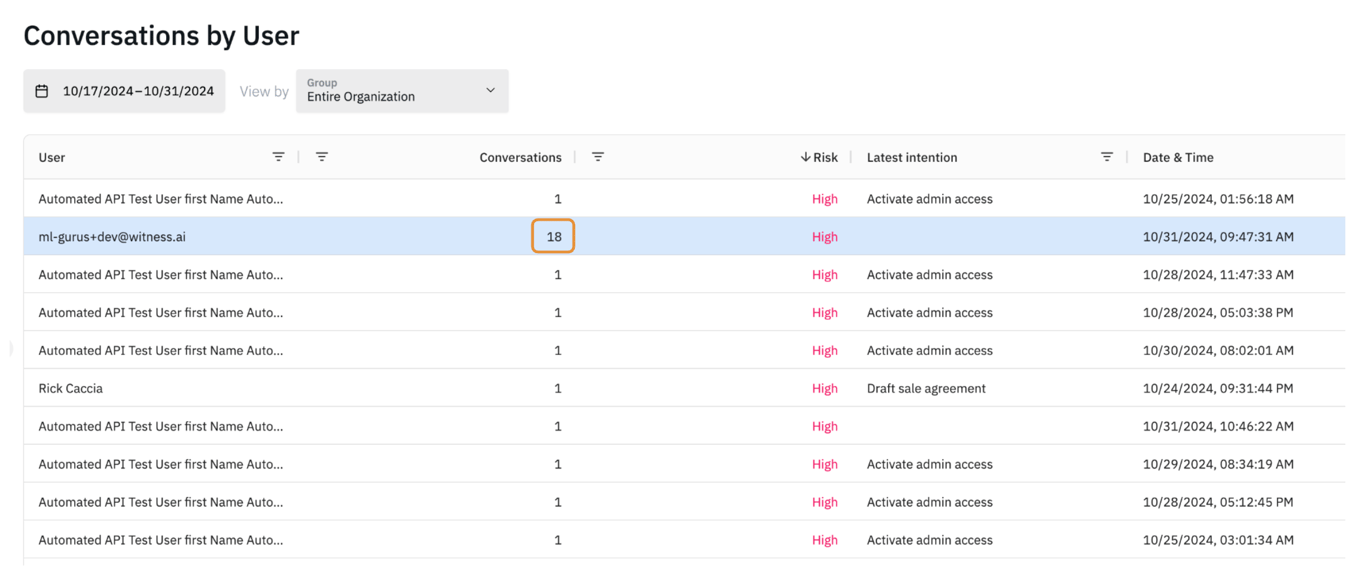
WitnessAI Users page ‘Conversations by User’ table showing users sorted by Risk (High), with columns: User, Conversations (count), R-Risk score, Latest Intention, Date & Time. One user (nc.jones@jeffreys.ai) is highlighted in blue with 18 conversations, indicating the selected user for investigation.
  1. Clicking on the row opens the Conversations page in a new browser tab (image below), filtered to that specific Conversation. You can see the filter is active by a line just above the table:
  2. Users… > All conversations by ml-gurus+dev@witness.ai
  3. Now you can investigate on the Conversations page.
  4. Clicking a line on the Conversations table shows more details in the pane at the bottom of the page.
  5. Hovering over the prompt (3) circled in below, shows a blue Analyze risk link. Clicking on this link shows the Risk Analysis sidebar (4) on the right side of the page.
WitnessAI Conversations page annotated with numbered callouts showing how to investigate user conversations: (1) conversation list filtered by user, (2) ‘6 of 18’ page navigation, (3) highlighted conversation row, (4) Risk Analysis panel with Action and Score, (5) Triggered Policy: Seth’s Fortinet Warn Policy - v2, (6) Conversation link. The user investigation workflow shows the complete Risk Analysis and Conversation details.
  1. Clicking on the Triggered Policy name link: Seth’s Fortinet Warn Policy - v2 (5) opens the associated Policy page with Seth’s policy already open.
  2. Clicking on the Conversation link: write a python program to connect to rest API (6) opens it in the page.