GuardRail: Harmful Response Prevention

GuardRail: Harmful Response Prevention

WAI Docs Wed Aug 19 13:22:37 EDT 2026
List
Quick Start
Welcome
Supported Applications & LLMs
Release Notes
August 18, 2026 WitnessAI Release
August 4, 2026 WitnessAI Release
July 21, 2026 WitnessAI Release
July 14, 2026 WitnessAI Release
July 9, 2026 WitnessAI Release
June 30, 2026 WitnessAI Hotfix
June 23, 2026 WitnessAI Release
June 16, 2026 WitnessAI Release
June 11, 2026 WitnessAI Release
June 4, 2026 WitnessAI Hotfix
June 2, 2026 WitnessAI Update
May 19, 2026 WitnessAI Update
April 30, 2026 WitnessAI Update
April 28, 2026 WitnessAI Update
April 23, 2026 WitnessAI Update
April 16, 2026 WitnessAI Update
April 14, 2026 WitnessAI Update
April 9, 2026 WitnessAI Update
April 7, 2026 WitnessAI Update
April 2, 2026 WitnessAI Update
March 31, 2026 WitnessAI Update
March 24, 2026 WitnessAI Update
March 19, 2026 WitnessAI Update
March 17, 2026 WitnessAI Update
March 12, 2026 WitnessAI Update
March 5, 2026 WitnessAI Update
February 26, 2026 WitnessAI Update
February 24, 2026 WitnessAI Update
February 10, 2026 WitnessAI Update
January 27, 2026 WitnessAI Update
January 20, 2026 WitnessAI Update
January 13, 2026 WitnessAI Update
December 18, 2025 WitnessAI Update
December 9, 2025 WitnessAI Update
November 25, 2025 WitnessAI Update
November 18, 2025 WitnessAI Update
November 11, 2025 WitnessAI Update
October 28, 2025 WitnessAI Update
October 23, 2025 WitnessAI Update
October 9, 2025 WitnessAI Update
October 2, 2025 WitnessAI Update
September 30, 2025: WitnessAI Update
September 23, 2025: WitnessAI Update
August 12, 2025: WitnessAI Update
July 31, 2025: WitnessAI Update
July 18, 2025: WitnessAI Update
April 11, 2025: WitnessAI Release v2.0
June 9, 2025: WitnessAI Update
June 23, 2025: WitnessAI Update
TOC Left Sidebar: not active
TOC Left Sidebar: ORIGINAL
User Guide
Policies - GuardRails
Witness Anywhere: Remote Device Security
Witness Attack
Administrator Guide
404
 

Harmful Response Prevention GuardRail

💡
Note: This Guardrail may appear to delay Streaming Responses. There is no actual delay of the entire response. The Complete Response is delivered in the same amount of time it would take for the entire Streaming Response to be delivered. The apparent delay is because the initial and incremental partial responses are withheld by WitnessAI until the entire response has been received and evaluated by the Guardreail.
Harmful Response Prevention is WitnessAI’s response analysis and control Guardrail. The purpose of this Guardrail is to analyze the responses back from AI models to user prompts, and then detect, and optionally prevent these responses from being sent to the user. These harmful responses are evaluated in three broad categories; harm to self, harm to others, and illegal activity. When this Guardrail detects these activities, it provides the option to Allow, Warn, or Block the response from the AI model with a customizable message.

Use Cases

Harm to self or others

Block or warn Users about dangerous AI responses, such as the possibility that AI Model responses may contain unqualified or inaccurate medical or financial information.

Illegal activity

Block or warn Users about dangerous AI responses, particularly common activities that may expose individuals or the Organization to legal risks.
 

Using Harmful Response Prevention Step-by-Step

This section covers details on the Harmful Response Prevention GuardRail, and how to add it to a Policy. Refer to the Policy Creation page for how to create Policies.

Add a Harmful Response Prevention GuardRail
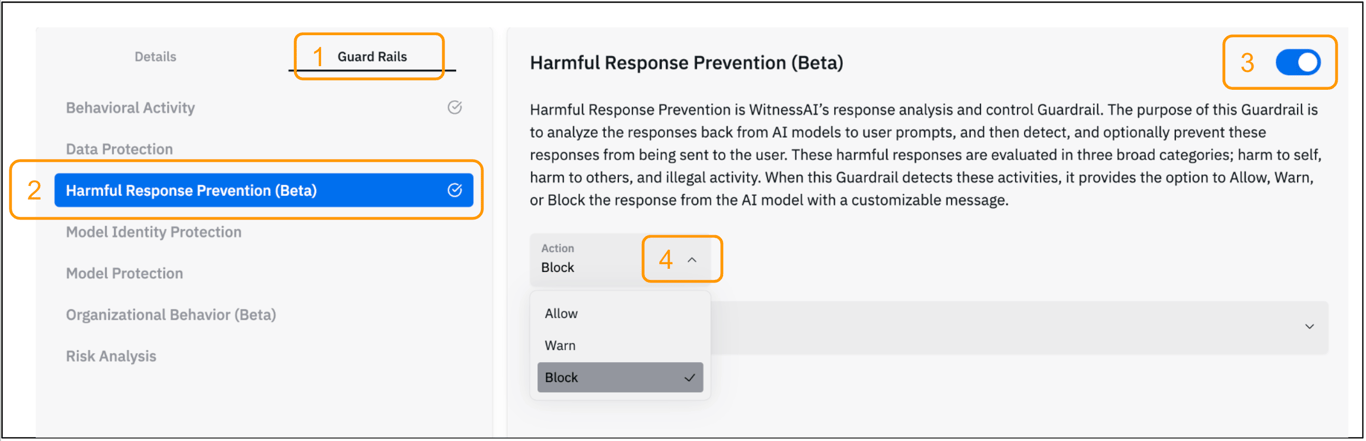
WitnessAI policy editor showing how to add the Harmful Response Prevention (Beta) GuardRail with numbered callouts: (1) Guard Rails tab highlighted, (2) ‘Harmful Response Prevention (Beta)’ selected in left panel (orange), (3) toggle enabled (blue), (4) Action dropdown open showing Block, Allow, Warn options. The GuardRail description explains it analyzes responses from AI models to detect harmful content including harm to self, harm to others, and illegal activity.
After creating a Policy
  1. Click the Guard Rails tab in the policy editor.
  2. Select the Harmful Response Prevention GuardRail from the available options.
  3. Click the slide button to enable the GuardRail.
  4. Click the drop-down for the ‘Action’ field and choose Allow, Warn, or Block.
  5. Optionally click the drop-down for the ‘Message’ field and choose the message to show the user when a Harmful Response is detected. A custom message can be added if desired.
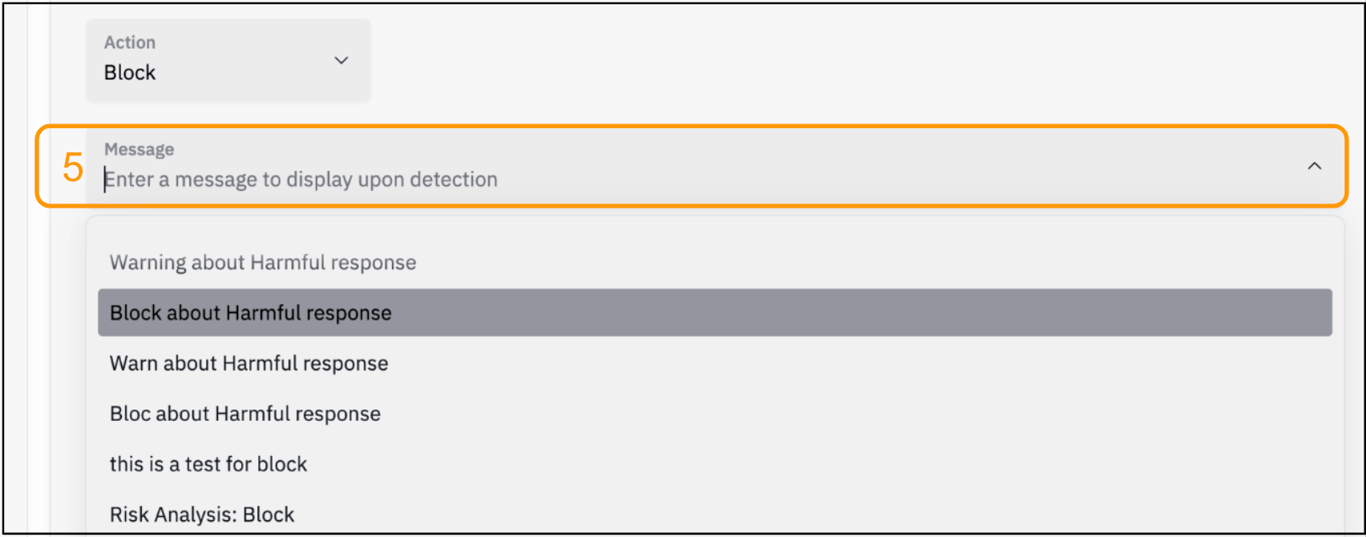
WitnessAI Harmful Response Prevention GuardRail setup showing step 5 - the Message field dropdown. The annotated callout (5) highlights the Message dropdown showing available pre-configured messages: ‘Warning about Harmful response’, ‘Block about Harmful response’ (highlighted in blue), ‘Warn about Harmful response’, ‘Bloc about Harmful response’, ‘this is a test for block’, ‘Risk Analysis: Block’. The Action is set to Block.
  1. Save the configuration.